Discovery-Windows.exe
6 minute read
As an alternative to inventory via wizards, the autonomous discovery module can be used. This is executed directly on the target system and generates a result file, which is then imported into Docusnap.
General information about autonomous discovery modules, standard parameters, and importing result files can be found in the chapter Autonomous Discovery Modules.
Available Modules
- Discovery-Windows.exe – For current Windows systems
- Discovery-Windows-Legacy.exe – For Windows 7 and older
- DocusnapScript.exe – Identical to Discovery-Windows.exe, no longer being developed, remains for existing implementations
Full inventory of certain components requires administrative rights. Without these rights, data may be completely missing or only partially read.
Components that require administrative rights:
- Task Scheduler
- User Profiles
- BitLocker
- Power Options
- Installed Apps
- Local Users & Groups
- SMB Connections
- TPM & UEFI Status
- Certificates – Private
- Certificates – Trusted
Parameters
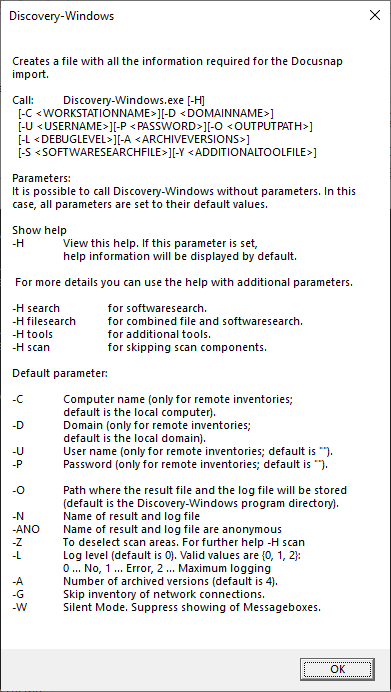
- -H – Displays the help text
- -O <Path> – Sets the path where the XML file should be generated. If a log file is created, it will be saved to this path.
- -C <Hostname> – Sets the name of the workstation
- -D <Domain> – Sets the name of the domain in which the system to be inventoried is located
- -L <Debuglevel> – Sets the debug level used during inventory:
- 1 = Errors and function calls are logged
- 2 = The entire program flow is logged
- -S <Path> – Path to the XML file for software and file search
- -Y <Path> – Path to ToolInfo.xml for additional tools
- -Z <Value> – Selection of components to be inventoried
- -ANO – Anonymizes the filename of the result file
Examples:
If the system on which the Discovery-Windows.exe module is executed is being inventoried, no additional parameters need to be specified. The storage path for the XML file can be selected using -O.
C:\Discovery-Windows.exe -O C:\DocusnapWindowsModul
If a different system on the network is to be inventoried rather than the system on which the Discovery-Windows.exe module is executed, the system to be inventoried can be determined using the -C and -D parameters.
C:\Discovery-Windows.exe -C WKNE0006 -D intern.local -L 2 -O C:\DocusnapWindowsModul
Inventories the workstation WKNE006 in the domain intern.local at debug level 2 and saves the generated XML file to C:\DocusnapWindowsModul.
Software and File Search
With the help of Software and File Search, Docusnap offers an additional feature to inventory specific files on the file system of Linux, Mac, and Windows systems that cannot be captured through Windows inventory. The found files are provided for evaluation in Docusnap in different ways depending on categorization (file search for Linux, Mac, and Windows or software search for Windows). The software and file search can also be used when executing the Discovery-Windows.exe module. To use the software and file search, an XML list must be created manually.
The software list is invoked in the Discovery-Windows.exe module with the following call:
Discovery-Windows.exe -S <Path><Filename.xml>
C:\Discovery-Windows.exe -S C:\Docusnap\Softwarelist.xml
The XML file has the following structure:
<?xml version="1.0" encoding="UTF-8" ?>
<Search>
<SearchItem><!--File Search-->
	<Name>log4j</Name>
	<FileName>*log4j*</FileName>
	<FileSize>0</FileSize>
	<Category>1</Category>
	<IncludeExcludeList>
	<SearchPath>
	<IncludePath>c:\windows</IncludePath>
	<ExcludePath></ExcludePath>
	</SearchPath>
	<SearchPath>
	<IncludePath>c:\temp</IncludePath>
	<ExcludePath></ExcludePath>
	</SearchPath>
	</IncludeExcludeList>
	<OnlyFirstMatch>true</OnlyFirstMatch>
	<UseSystemDrive>false</UseSystemDrive>
</SearchItem>
<SearchItem><!--Software Search-->
	<Name>Notepad</Name>
	<Version></Version>
	<Publisher></Publisher>
	<FileName>notepad.exe</FileName>
	<FileSize>0</FileSize>
	<ModifyDate></ModifyDate>
	<SearchPath>c:\temp</SearchPath>
	<Category>0</Category>
</SearchItem>
</Search>
- The filename must be specified correctly or set using wildcards (?, *)
- Only either excluding or including paths are possible in the search
- Category 1 = File search, Category 0 = Software search
- OnlyFirstMatch true = only the first result is captured, false = all results
- UseSystemDrive true = system partition only, false = all partitions
- If an incorrect file size is specified, the desired file will not be read
- If one of the optional areas is not specified, the notation (
) can be used.
The search is backward compatible, so existing executions are not affected. Previously used XML files for software search can continue to be used.
<SoftwareItem>
<SoftwareName>My New Software 1</SoftwareName>
<SoftwarePublisher>Microsoft</SoftwarePublisher> <!-- optional-->
<SoftwareVersion>1.0 Beta</SoftwareVersion> <!-- optional-->
<FileName>notepad.exe</FileName>
<SearchPath>C:\Windwos</SearchPath>
<FileSize>193536</FileSize> <!-- optional byte-->
<ModifyDate>01.01.2016</ModifyDate> <!-- optional-->
</SoftwareItem>
<SoftwareItem>
<SoftwareName>My New Software 1</SoftwareName>
<SoftwarePublisher /> <!-- optional-->
<SoftwareVersion /> <!-- optional-->
<FileName>notepad.exe</FileName>
<SearchPath>C:\Windwos</SearchPath>
<FileSize /> <!-- optional byte-->
<ModifyDate /> <!-- optional-->
</SoftwareItem>
If one of the optional areas is not specified, the notation as shown in the example on the left must be used (<SoftwarePublisher/>).
If an incorrect file size is specified, the desired software will not be read!
If a defined software is found during execution of the Discovery-Windows.exe module, it is saved in the result XML file and output when this file is imported into Docusnap.
Additional Tools
By using additional tools, further information about a Windows system can be captured during inventory. The execution of additional tools can also be started as part of the Discovery-Windows.exe module. To execute additional tools, an XML file with the required information must be created.
Additional tools are invoked in DocusnapScript with the following call:
Discovery-Windows.exe -Y <Path><Filename.xml>
C:\Discovery-Windows.exe -Y C:\Docusnap\ToolInfo.xml
The XML file has the following structure:
<ToolInfo>
 <Url>systeminfo.exe</Url>
 <Parameters> </Parameters>
 <ResultFile>systeminfo.txt</ResultFile>
 <OpenWith>notepad.exe</OpenWith>
 <Description>Systeminfo</Description>
 <ToolType>0</ToolType>
 <Timeout>10000</Timeout>
 <ExecuteRemote>false</ExecuteRemote>
</ToolInfo>
If PowerShell is defined as an additional tool, the special characters | and " must be escaped so they can be used in the parameters. Quotation marks " must be masked with \" and pipes | with ^|. If the notation -Command “&{}” is used, the special character | (pipe) does not need to be escaped.
- ipconfig ^| Select-String -Pattern \"IPv4-Adresse\" (Escape necessary)
- -Command "&{ipconfig | Select-String -Pattern \"IPv4-Adresse\"}" (No escape of pipe necessary)
Data collected during execution of additional tools as part of the Discovery-Windows.exe module is saved in the result XML file and output when this file is imported into Docusnap.
Selecting Scan Components -Z
Docusnap offers the ability to specifically select the components to be inventoried on Windows systems (software, updates, services, etc.).
The call is made using the parameter -Z
C:\Discovery-Windows.exe -Z 65407
Full inventory of certain components requires administrative rights. Without these rights, data may be completely missing or only partially read.
Components that require administrative rights:
- Task Scheduler
- User Profiles
- BitLocker
- Power Options
- Installed Apps
- Local Users & Groups
- SMB Connections
- TPM & UEFI Status
- Certificates – Private
- Certificates – Trusted
The required number can be determined in two ways:
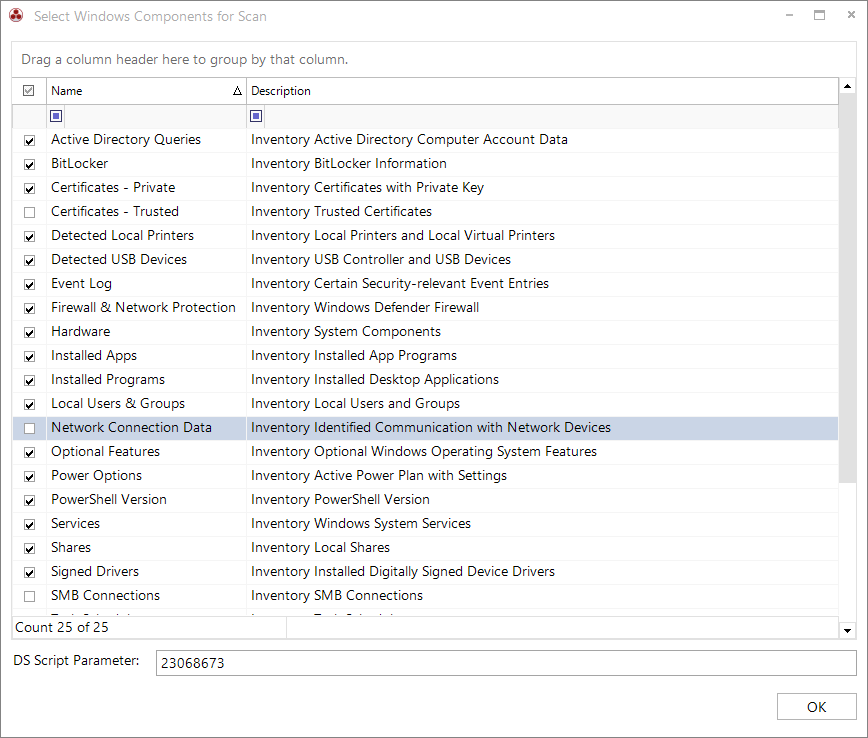
1. Windows Scan Wizard
In the Windows Scan Wizard (AD or IP), step 3 contains the Select Components button. This button can be used to define which components should be inventoried. The value in the DS Script Parameter text field can then be used when executing the script to inventory only certain components.
2. Manual Enumeration
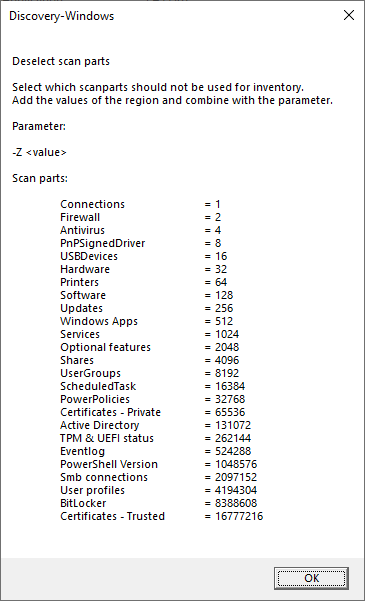
In the help of the Discovery-Windows.exe module, specific help for scan areas can be opened: Discovery-Windows.exe -H scan.
The corresponding components can now be determined by adding the numbers behind them.
Anonymizing Filenames -ANO
The .XML files created by the Discovery-Windows.exe module are named as follows:
- Computer name
- User or system that executed the Discovery-Windows.exe module
- Date and time of execution
Example:
VPC-SDA_VPC-SDA_admin_20210323090358.xml
By executing the Discovery-Windows.exe module with the -ANO parameter, the filename is anonymized.
Example:
383ee2d1-46ae-4cbc-b2f9-b4dc437bf911.xml
C:\Discovery-Windows.exe -ANO